How do I subscribe to the student calendar on my device?
Follow the steps below to add the student calendar to your device.
- On the left side of the screen, select the box next to the name of the student(s) you want a calendar subscription for.
- Click on Subscribe Calendar.
- Select either subscribe or copy URL.
- Subscribe:An app selection screen will appear; select the app you want to import the calendar into (varies by operating system).
- Copy URL: A calendar subscription link will generate. A secondary screen will pop up with the URL display and a button to copy it to the clipboard.
- If more than one student is selected from the side menu, a popup with the list of selected students will display. You must select only one student›s name on the popup before being allowed to continue
- After initiating the subscription or copying the subscription URL, complete the process by following the steps for specific devices.
- For more detailed instructions, please see “I’m having trouble subscribing to the calendar.”
I’m having trouble subscribing to the calendar.
Troubleshooting specifics for adding calendars to Outlook, Google, and Apple Calendars.
Outlook
There are two versions, the newer Office 365 web browser version and Classic Outlook. The download process varies slightly; please reference the instructions based upon the version.
- New Outlook/Web Browser Outlook/Office 365:
-
Microsoft Support - Outlook Calendar Subscription
- Important Note: Clicking subscribe may not correctly fill in the URL, resulting in an “Invalid URL” error (as illustrated below).
- To fix this, type
https: or webcal: before the copied URL in the input box (as illustrated below).
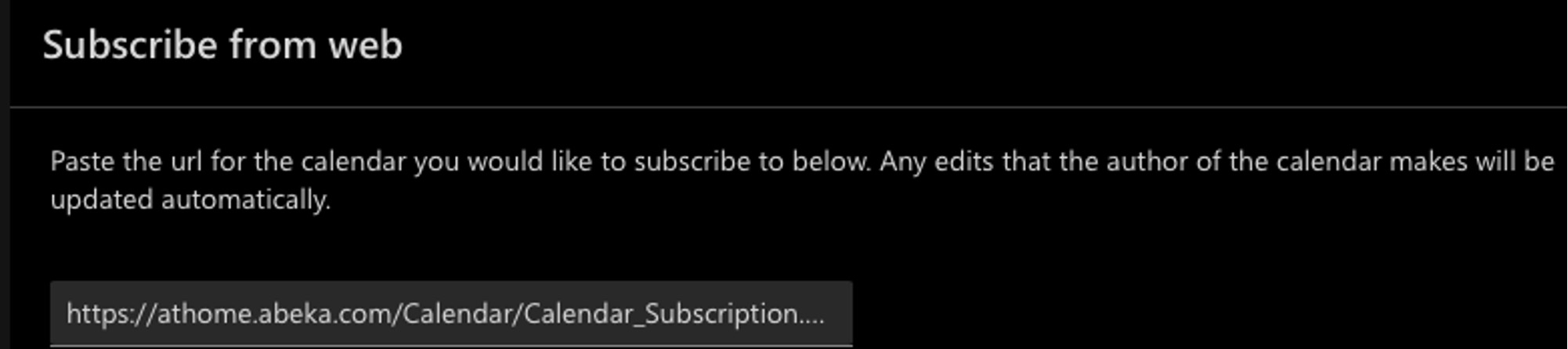
- Alternatively, select Copy URL on the dashboard calendar page and manually enter the URL.
- Please Note: After subscribing, the full calendar of events may take several hours to update. Please allow for this transitional time before troubleshooting.
- Classic Outlook/Desktop Outlook:
Google Calendar
Apple Calendar (iOS/macOS)
For iOS operating systems’ Apple Calendar, please see instructions for specific devices below.
- iPhone:
Apple iPhone Calendar Support
- Select Calendars at the bottom center of the screen.
- On the next page, select Add Calendars, then Add Subscription Calendar.
- Paste the copied URL from Abeka and finish subscribing.
- Mac:
Apple Mac Calendar Support
- When prompted to enter the calendar's web address, paste the copied URL from Abeka and finish subscribing.
- iPad:
Apple iPad Calendar Support
- Scroll to Subscribe to a calendar.
- • When prompted to enter the calendar’s URL, paste the copied URL from Abeka and finish subscribing.
Additional Information
- If issues occur with copying/pasting or “Incomplete URL” errors, add
https: or webcal: before the URL.
- Full calendar updates may take hours; allow time before troubleshooting.